
This post is written by AI from my own curiosity. It started with questions like, which came first, SL or OSGrid? Why do they both look and “work” the same? Why are regions restricted in size in SL? Where are the servers? What the hell is a sim, region, grid, anyways? … Eventually , I had it summarize the lesson for me, and I will share it here.
Linden Lab was founded by Philip Rosedale in 1999. The company’s first product was not a virtual world but immersive VR hardware, literally a 360-degree rig known internally as “The Rig,” built as a steel frame with monitors worn on the shoulders. The hardware was impractical and patent-encumbered, so Linden Lab pivoted to software. The staff needed a virtual environment to run on the gear, and that environment, begun around 2001, became the prototype LindenWorld.

LindenWorld was renamed Second Life in 2002 and launched publicly on June 23, 2003. Rosedale supplied the founding vision, a continuous landscape distributed across many servers. Much of the engineering came from Cory Ondrejka, credited as a co-creator, who built key parts of the technical backbone including LSL (Linden Scripting Language), still in use today. Ondrejka became CTO and left the company in late 2007.
The core unit of Second Life is the region: a 256×256-meter square of land. Each region is handled by a single server process called a simulator, or “sim,” written in C++. Historically the rule was one full region per CPU core. The simulator is responsible for nearly everything happening in that square: rigid-body physics (gravity, elasticity, collision detection), a simplified atmospheric model for winds and clouds, all the prims, all running scripts, and the caching and delivery of object and texture data to connected viewers.
A simulator targets 45 frames per second. When it can’t keep up with the load, it does not drop the frame rate; instead it applies time dilation, effectively slowing in-world time so the physics stay consistent. This is why a laggy region feels like everything is moving through molasses rather than skipping frames.
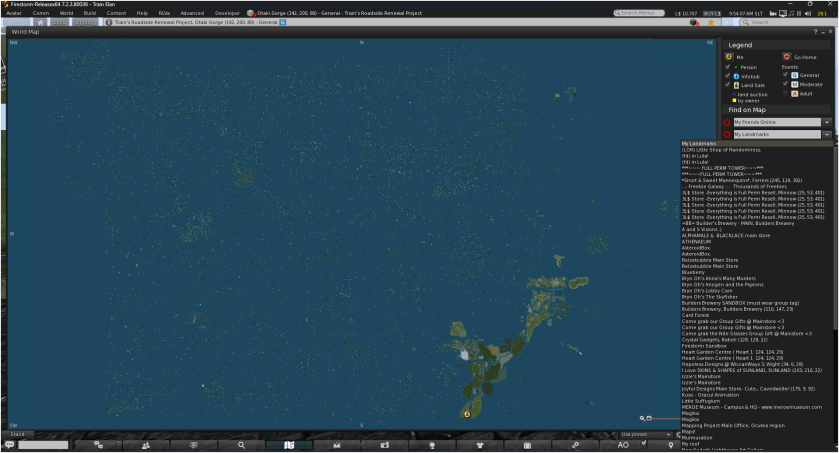
Regions are stitched into a larger world by network links. Each simulator maintains UDP connections, called circuits, to its adjacent neighbors, up to four at the edges, forming a 2D grid of machines. As a viewer walks across a region boundary, control is handed off from one simulator to the next. A separate login service authenticates the user, determines the starting region, tells that simulator to expect the connection, and points the viewer at the correct machine. Central databases handle inventory, assets, and user accounts.
An important division of labor: the simulator only sends updates to a viewer when something changes, a collision, a change in velocity or direction, rather than streaming constant state. This keeps bandwidth down and is one of the ways the system scaled to thousands of simultaneous regions.
When Second Life launched in 2003, cloud computing as we know it did not exist; Amazon Web Services did not launch until 2006. Linden Lab therefore ran everything on its own hardware in colocation facilities. In the late 2000s the workhorse was the “Class 4” server: a Debian Linux box with two dual-core CPUs running four sims per machine (one region per core). Earlier “Class 2” and “Class 3” hardware ran one and two sims respectively before being retired.
That model has since changed completely. Second Life migrated off Linden Lab’s own data centers and onto Amazon’s AWS cloud. Today each region runs as a simulator inside an AWS EC2 instance within an ECS container, with roughly 26,000 regions in operation. The architecture – one sim per region, handed off over the network, is largely unchanged; only the underlying iron moved from owned racks to rented cloud capacity.
OpenSimulator: The Open-Source Server
OpenSimulator was first made public on January 29, 2007, when Darren Guard released a working C# 3D world server. It is not a copy of Linden Lab’s code, which remains closed. It is a clean-room re implementation: the server was written from scratch to speak the same protocol Second Life viewers already used. Because the code originated independently, there was never a copyright case to answer — the only real friction was a trademark rename of the client library from libsecondlife to libopenmetaverse.
OpenSim is written in C# and runs on the .NET runtime on Windows or on Mono on Linux and other Unix-like systems. It is released under the permissive BSD license. It runs in two main configurations:
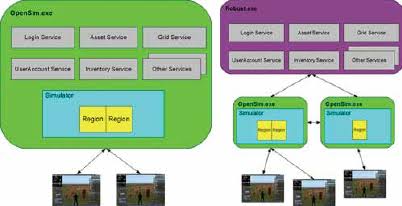
Standalone mode puts the region simulator and all supporting services in a single process (OpenSim.exe) and can use a lightweight SQLite database. This is the simplest way to run one or a few regions.
Grid mode splits the work. Region simulators (each an OpenSim.exe) connect to a central services shell called ROBUST (Robust.exe) — the name stands for “Basic Universal Server Technology.” ROBUST hosts the shared services: assets, inventory, grid, and user accounts. These services are stateless and arranged in a hub-and-spoke pattern, so multiple simulators on multiple machines all draw from the same account and asset pool. In grid mode ROBUST requires a full database such as MySQL rather than SQLite. The traditional login port for a grid is 8002.
Physics is handled by a pluggable engine. The current default is BulletSim (built on the Bullet physics library); the alternatives are ubODE and the older ODE, both descended from the Open Dynamics Engine. Scripts run in a script engine — XEngine or the newer YEngine — and OpenSim supports both LSL and an extended dialect, OSSL, plus C#. As a rough capacity guide from the project’s own documentation, each active avatar consumes on the order of several percent of a CPU core, and a busy region with roughly 15,000 prims and 2,000 scripts can want about 1 GB of RAM.
OpenSim also adds features Second Life never had. Varregions allow a single region to exceed the fixed 256-meter square – 1024×1024 and larger are common. And Hypergrid lets an avatar teleport between entirely separate grids, run by different people on different hardware, via a hyperlinked map of public grids, something impossible inside Second Life’s single closed world.
Why the Two Work Together: The Viewer
Second Life and OpenSim look identical because they are viewed through the same client. In 2007 Linden Lab open-sourced its viewer, which enabled third-party viewers such as Firestorm and Singularity. Since OpenSim was written to answer the same protocol those viewers speak, one viewer can connect to Second Life or to any OpenSim grid and render the same water, terrain, prims, avatars, and build tools. The visual layer — rendering and UI — lives entirely in the viewer; the server’s job is to hold the world state and speak the protocol. That clean split between client and server is exactly what allowed an independent, open-source server to slot in behind an existing client and reproduce the whole experience on hardware anyone can own.
Self Hosting on Everyday Hardware

The practical consequence of OpenSim’s design is that a grid no longer needs a data center. Packages such as DreamGrid (from Outworldz) bundle OpenSim, its database, and a management interface into a Windows installer that automates the configuration work, the ROBUST services, region setup, backups, and hypergrid addressing that would otherwise mean hand editing .ini files. The same one sim per region architecture that once required Class 4 servers in a colo now runs comfortably on a single desktop PC or Laptop, with the owner’s home internet connection and a few forwarded ports standing in for Linden Lab’s network fabric.
Written by Claude AI from technical details drawn from the OpenSimulator project documentation, the Second Life Wiki server-architecture pages, and Linden Lab’s published history.



 Train's Tech Tips