
The Windows firewall blues can linger like a cloud, darkening your Second Life without you even knowing it. Are you having teleportation issues? Feeling logged out when you should be snappy? Your Windows machine that runs your viewer could be causing problems by constantly scanning your .exe files, and all your viewer’s contents folders as well. Lets take a mental health break, put the phone on dnd, and let your Second Life viewer breath without constantly asking permission from Windows.
First, lets make sure that your viewer is being allowed through Windows Firewall. This should have happened when you first installing the viewer, but lets check.
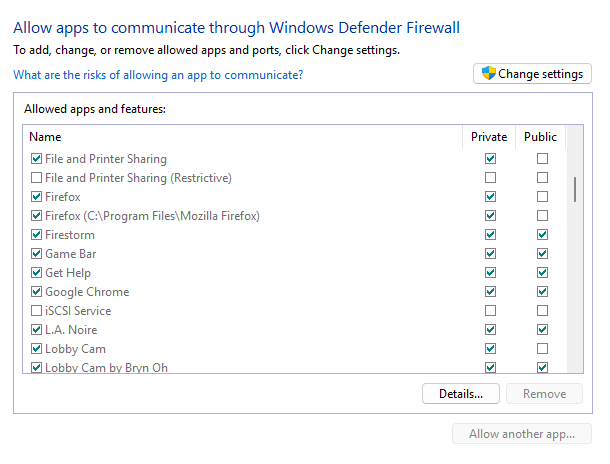
Open Firewall Settings.
Windows 10: Open Windows Security -> Firewall & Network Protection -> Allow an app through firewall
Windows 11: Press Win + I -> Privacy & Security -> Windows Security -> Firewall & Network Protection
Scroll the list to find your viewer. If it’s not listed, click Allow another app and browse to your viewer’s .exe file and check both boxes, private and public. Click OK to save.
Now that we know the firewall isn’t interfering, lets whitelist your viewer. Why Whitelist Your Viewer?
“Because some anti-virus programs will incorrectly flag a viewer or its components as a virus or threat, removing parts completely and rendering all or part of the viewer slow or non-functional. One known issue is that antivirus can scan every texture placed in cache, slowing down performance significantly, keeping objects from rezzing, and keeping CPU usage high.” Yes, A.I. wrote that, and it sounds important, so lets add all our viewer cache folders and all the .exe files to the Windows list of exclusions.
-> Click the Start button.
-> Type Windows Security and open it.
-> Click Virus & Threat Protection.
-> Scroll down and click Virus & Threat Protection Settings.
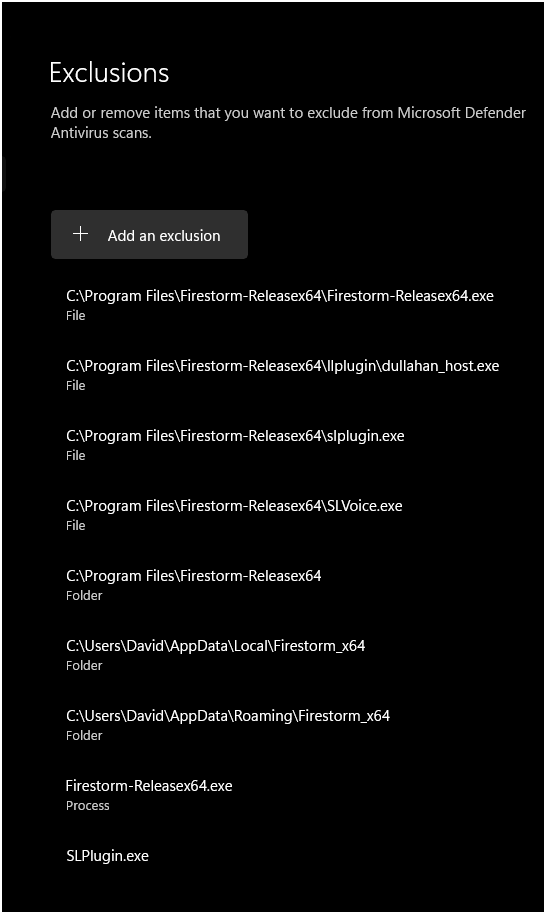
-> Scroll to Exclusions and click Add or remove exclusions. Choose the type, either File (for individual .exe files) or Folder (for the cache folder). Repeat for each .exe file and cache folder.
The files you need to add are:
firestorm.exe (your viewer.exe)
slplugin.exe
slvoice.exe
dullahan_host.exe
And the cache folders:
Windows 64-bit: C:\Users[USERNAME]\AppData\Local\Firestorm_x64 (your viewer_x64)
Windows 64-bit: C:\Users[USERNAME]\AppData\Roaming\Firestorm_x64 (your viewer_x64)
Ok, done! Re boot your machine and now Windows won’t be side eyeing your viewer and frisking it’s pockets with each Sim crossing and Teleport. I hope this mental health break keeps your Second Life sunny, free of the firewall blues.


 Train's Tech Tips